
Displaying Price Changes with Theme app Extension
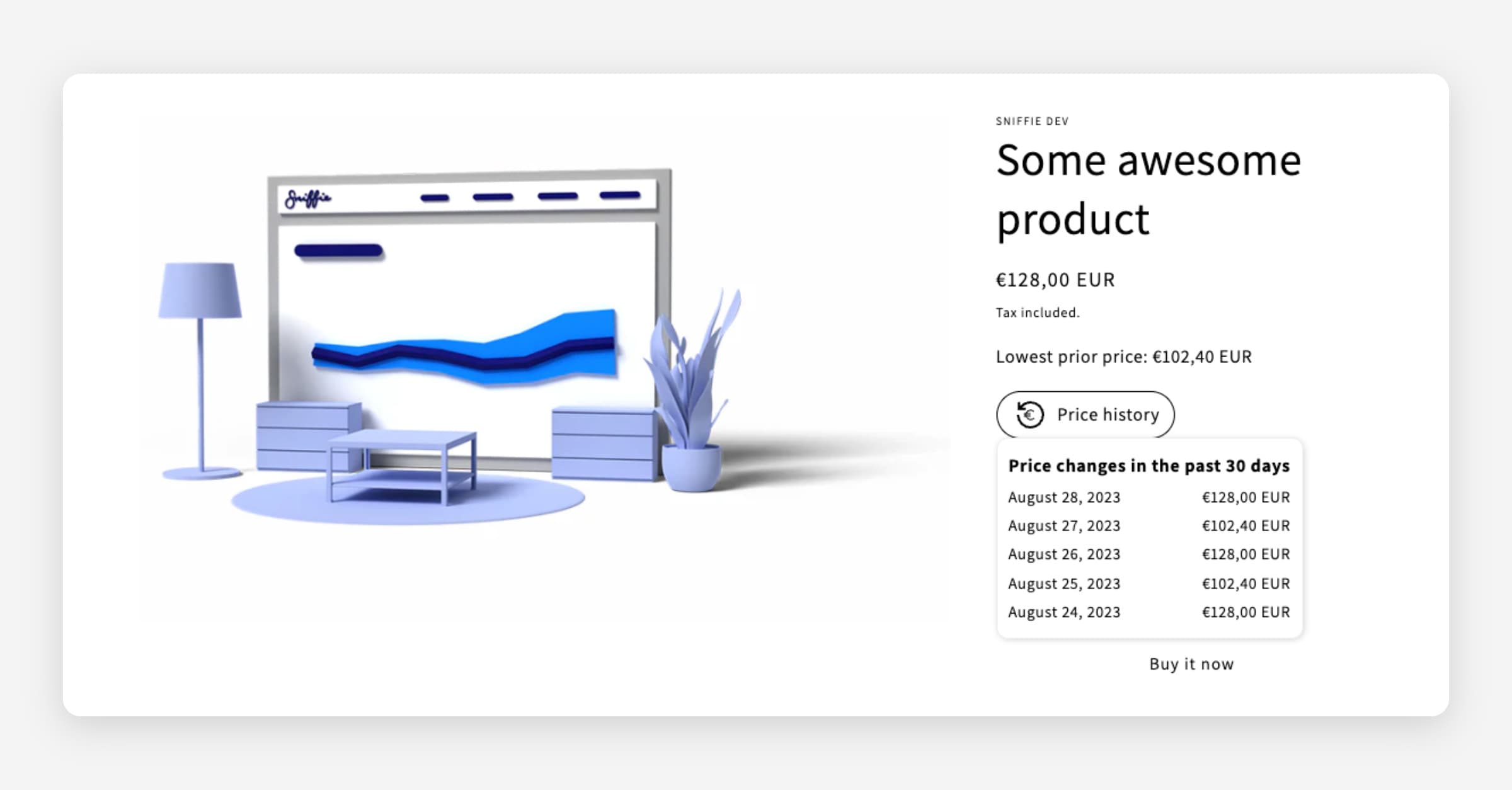
In addition to the Omnibus price theme extension block, used for displaying the lowest prior price as required by the EU directive, we provide another block for displaying more information on how the price has changed for the product. The purpose of the Omnibus price history theme extension block is to comply with regulations in countries where officials require price drops/increases during a discount to be displayed.
The block consists of a modifiable button which when hovered or clicked on will open a list of all price changes that have occurred during the past 30 days.
To add the block to your theme, go to Themes in your admin panel and choose Customize. On the product page template, choose Add block and select Omnibus price history.
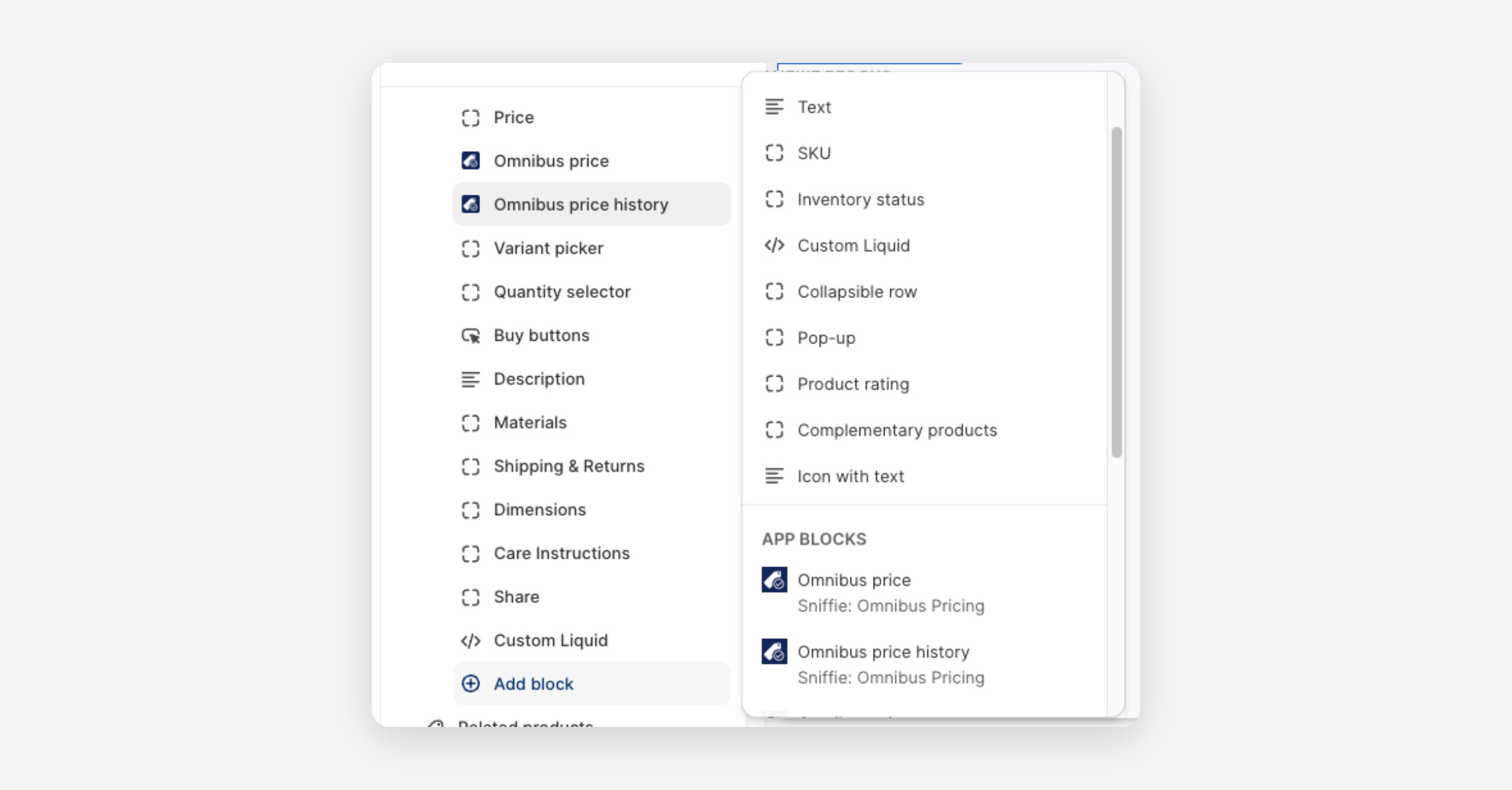
Drag the block to the desired position and click to open the settings panel.
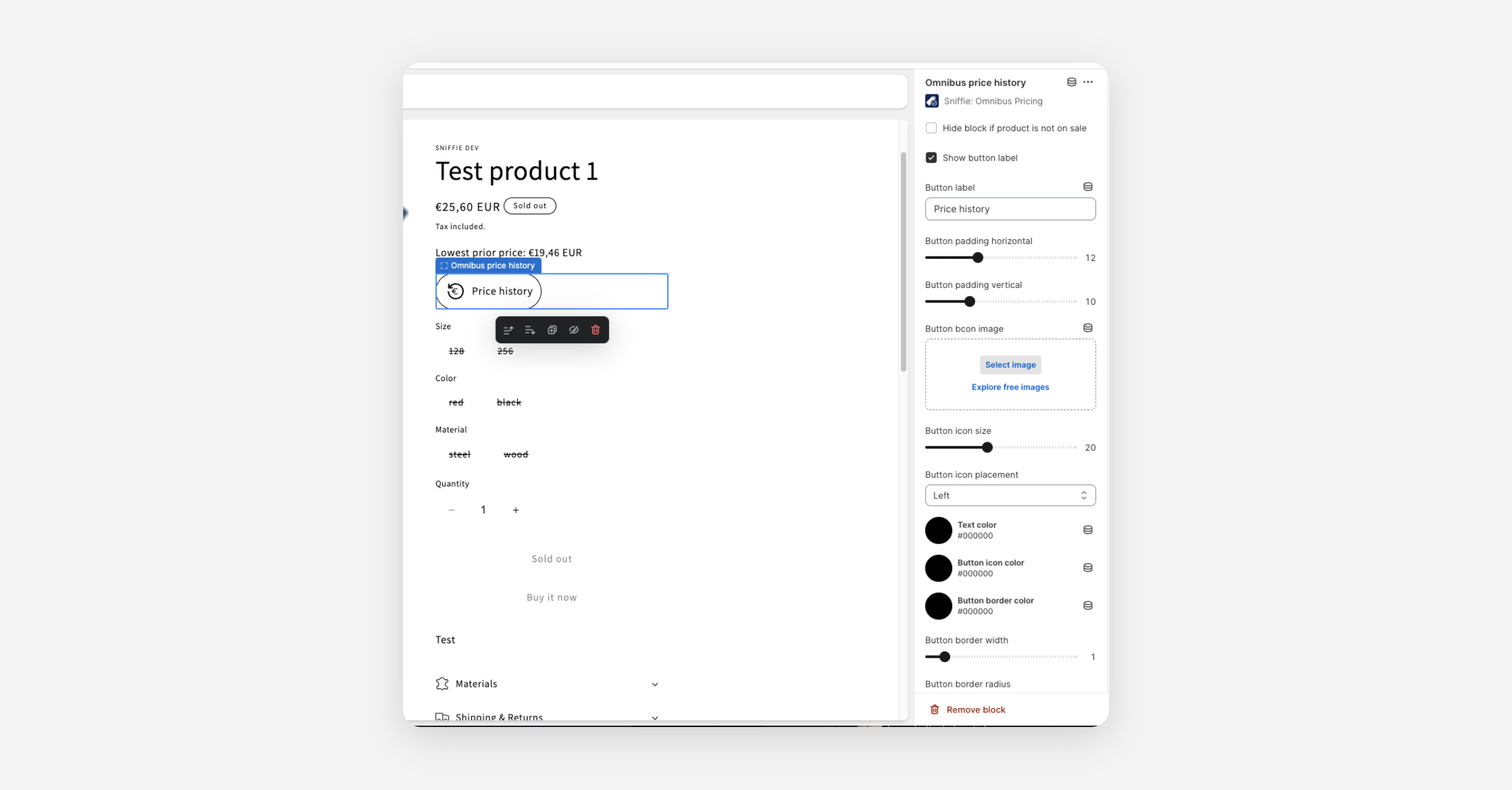
Here you can customize the layout by setting labels, colors, etc. Remember to also select an appropriate setting for Hide block if product is not on sale depending on whether or not you want to display the block when the product is sold at normal price.
For advanced customization, you may use the custom CSS field.
After you're done customizing the layout save and publish and the block will be live.
If you have any questions or request, please let us know. We're happy to help!
Was this helpful?